
AI-powered accessibility

Agentic accessibility.

Built by the legally blind, for the legally blind.

Point a webcam, a document camera or your phone at the board. OkuFlow magnifies it live, sharpens the text and holds the picture steady. When you ask, its assistant reads the slide aloud, explains what it shows and keeps your lecture notes.

Image enhancement requires a compatible NVIDIA GPU.

  • Windows 10 and 11For desktops and laptops, with an Android companion
  • USB, document and phone camerasOkuFlow Camera for Android (in testing) requires the Windows app
  • GPU-accelerated with NVIDIA CUDAFast, responsive processing for the live camera view
  • Free and open sourceGPL-3.0 · commercial license available

Why OkuFlow

Made by people who need it.

Built from lived experience of low vision. We focus on large, high-contrast controls and spoken answers so you can spend more time with the picture.

  1. It sees

    Follow the class from any seat. A live, steady, magnified view with Text Clarity, high-contrast colors and correction for screens seen at an angle.

  2. It understands

    Ask and the assistant reads the text in view, explains the scene and answers follow-up questions about it.

  3. It remembers

    Photos, recordings, answers and transcripts gather in lecture notes you can search and review after class.

Our vision

Accessibility should be accessible.

Assistive technology is too often expensive, tied to special hardware and hard to set up, even though the people who need it most are the ones who cannot read the small print. We think it should be affordable and easy for everyone.

  • Affordable

    Free and open source, removing the software purchase cost of a video magnifier.

  • Works with what you have

    A webcam, a document camera or your own phone instead of a dedicated video magnifier.

  • Easy to use

    Large controls, high contrast and spoken answers, designed to support independent use.

Inside OkuFlow

One live view. Every adjustment within reach.

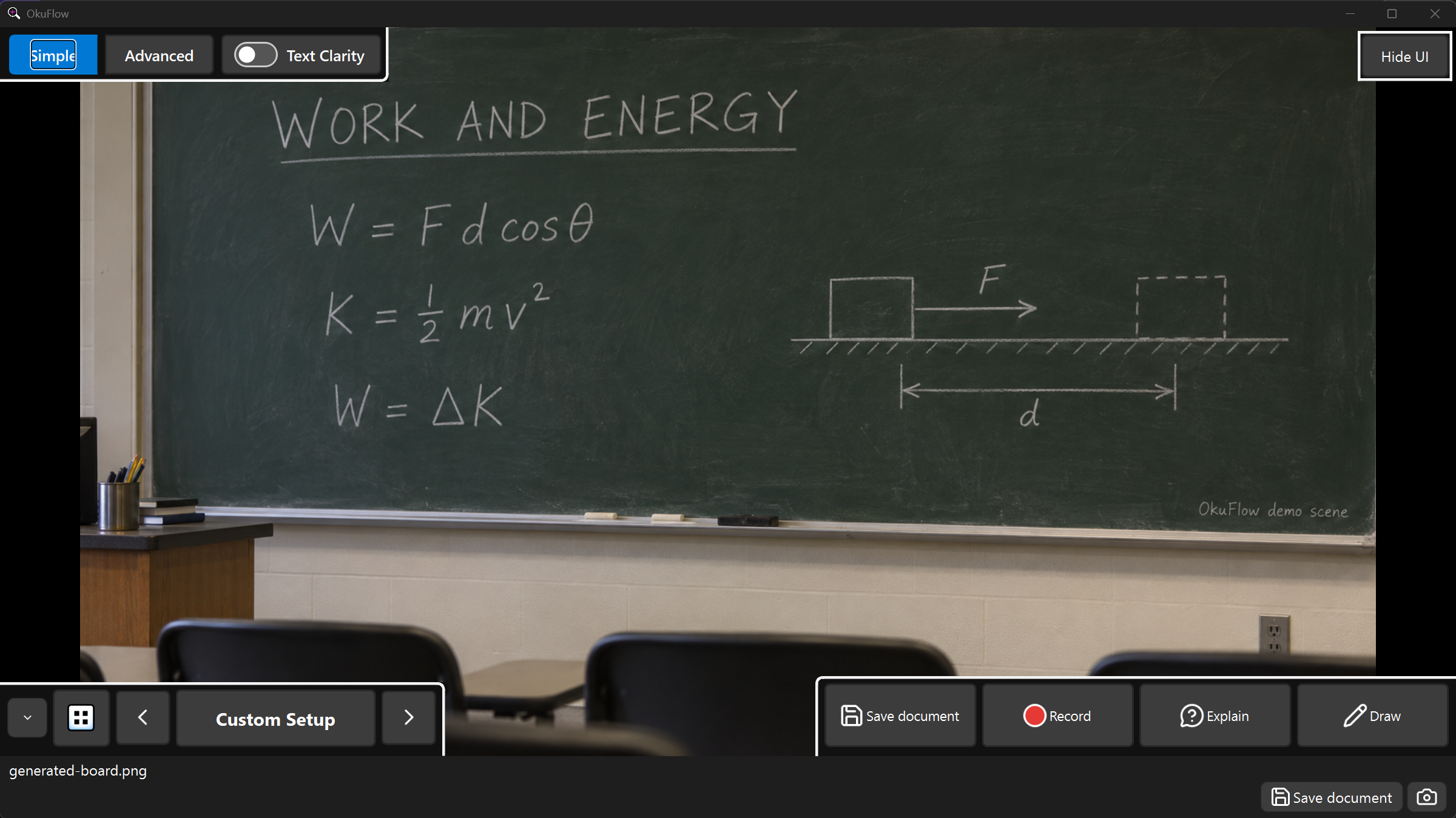
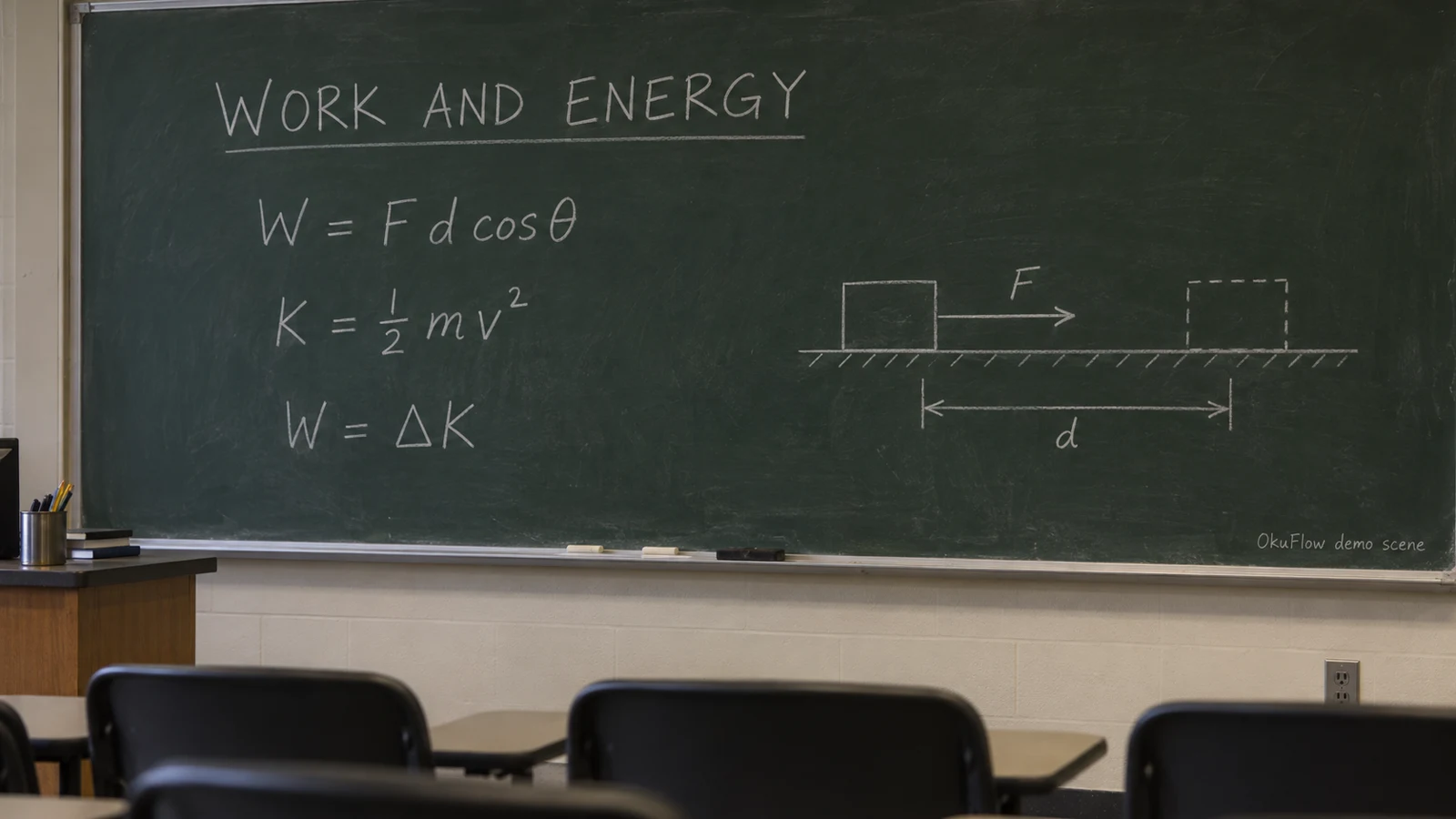
Every screenshot on this page is OkuFlow running on the same classroom scene, so you can compare what each tool changes.

A chalkboard titled Work and Energy with three equations and a force diagram, seen from behind empty desks
The scene used as camera input

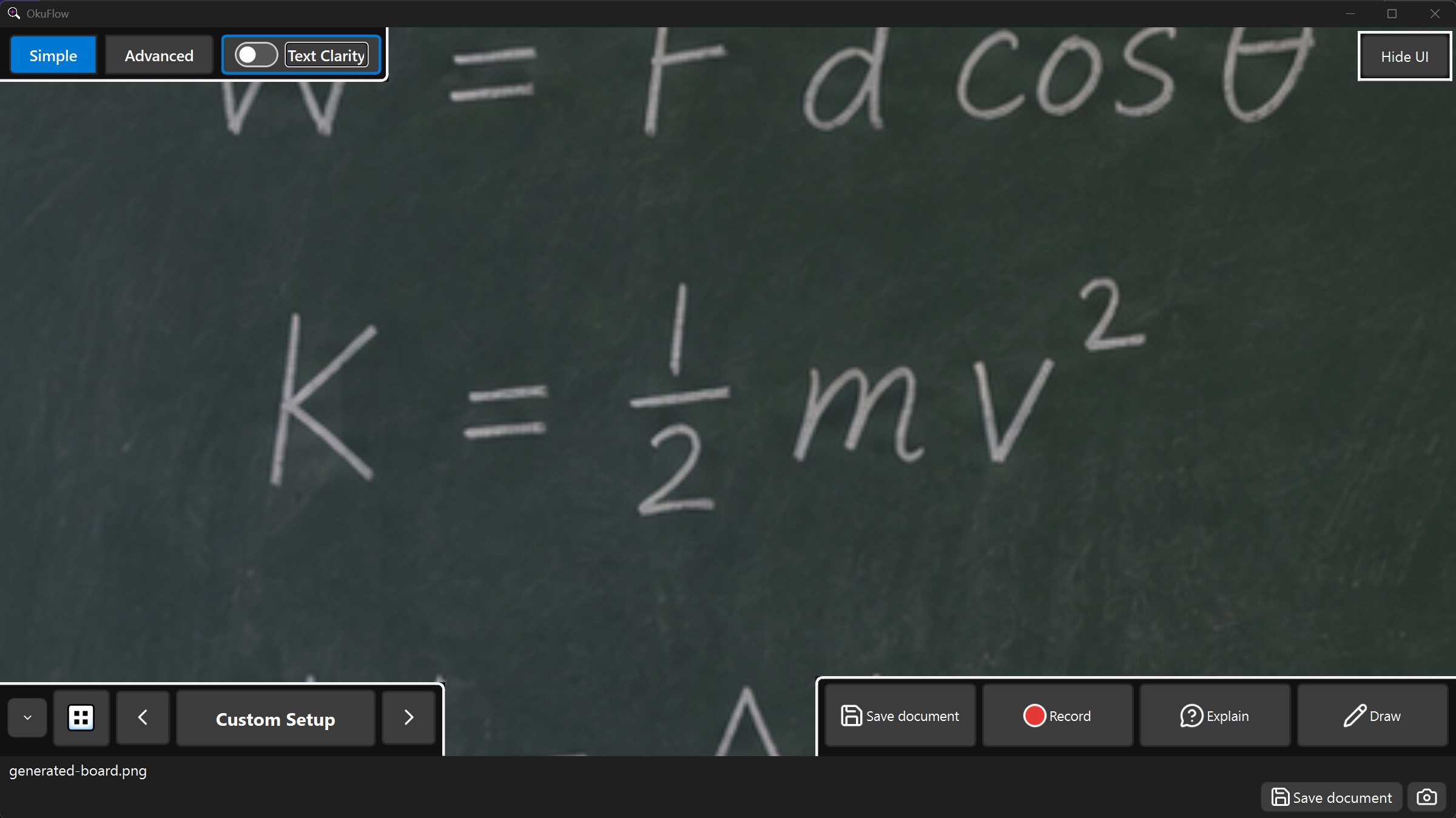
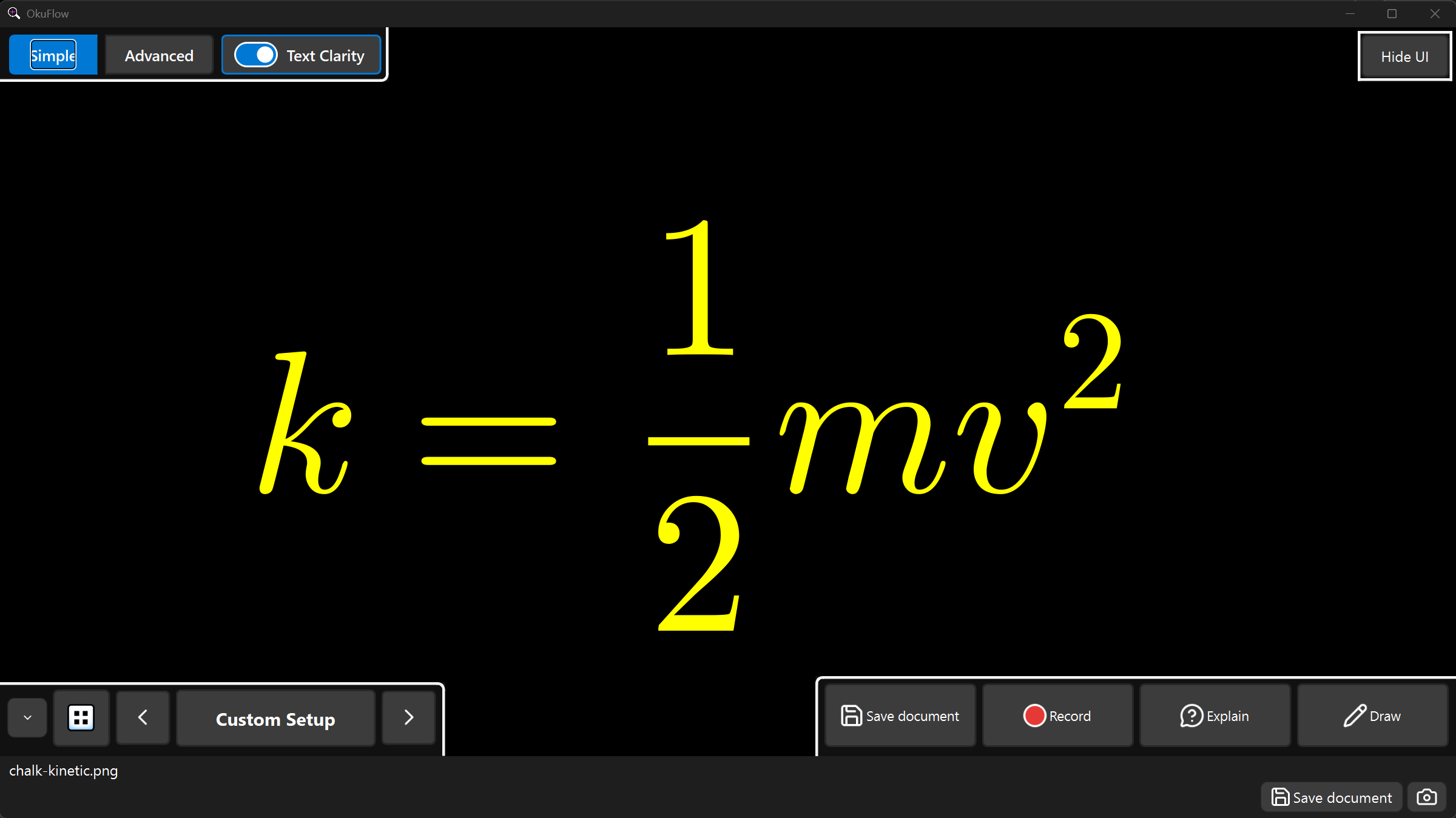
01Text Clarity

Crisp text from a live camera.
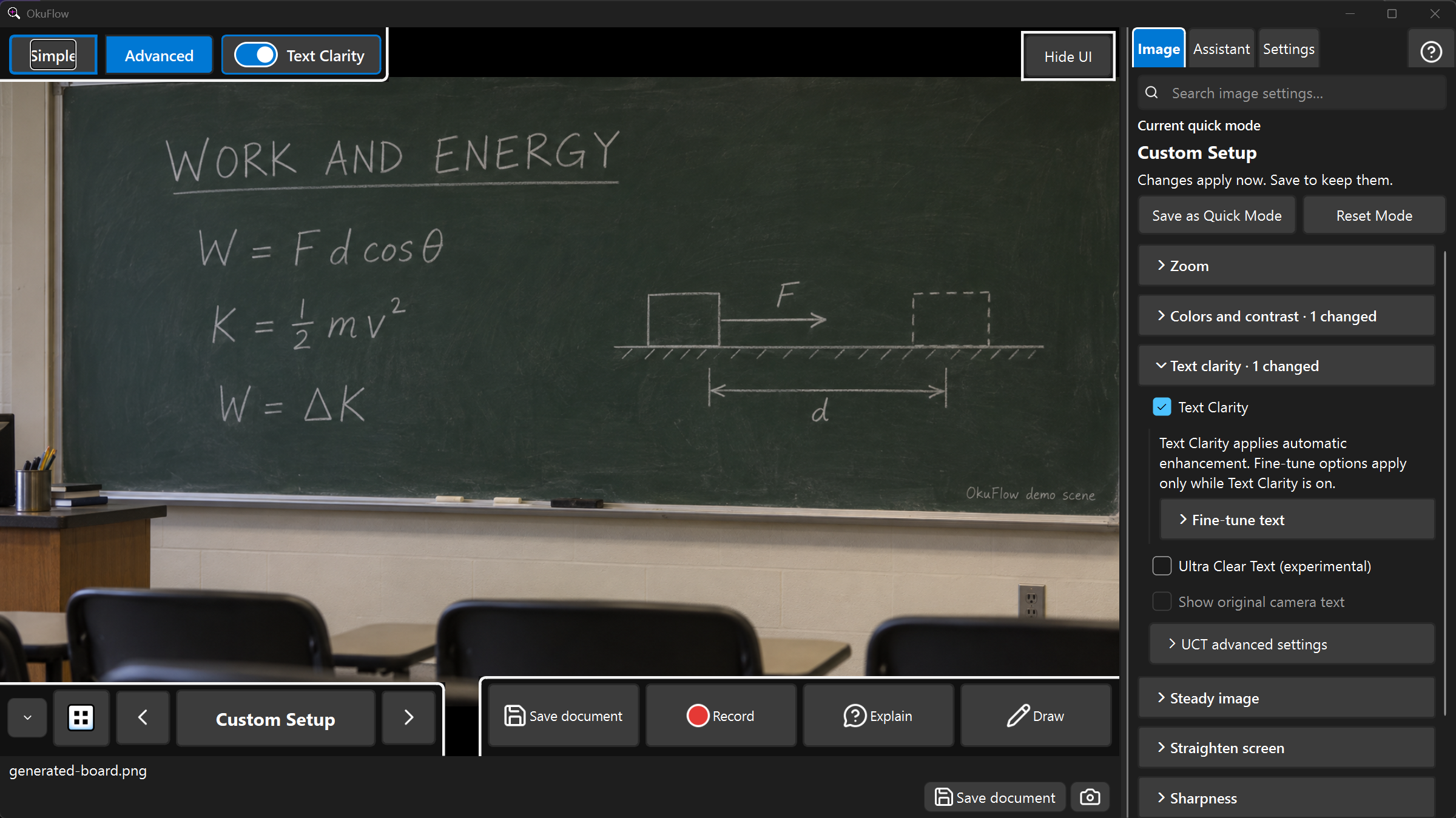
OkuFlow Text Clarity on the chalkboard scene
App screenshot Text Clarity

Text Clarity offers background flattening, automatic text polarity and controls for sharpening and stroke weight. Adjust them to the text in your camera view.

  • Background flattening and glare suppression
  • Two-color reading
  • Paper, board or mixed treatment chosen for you
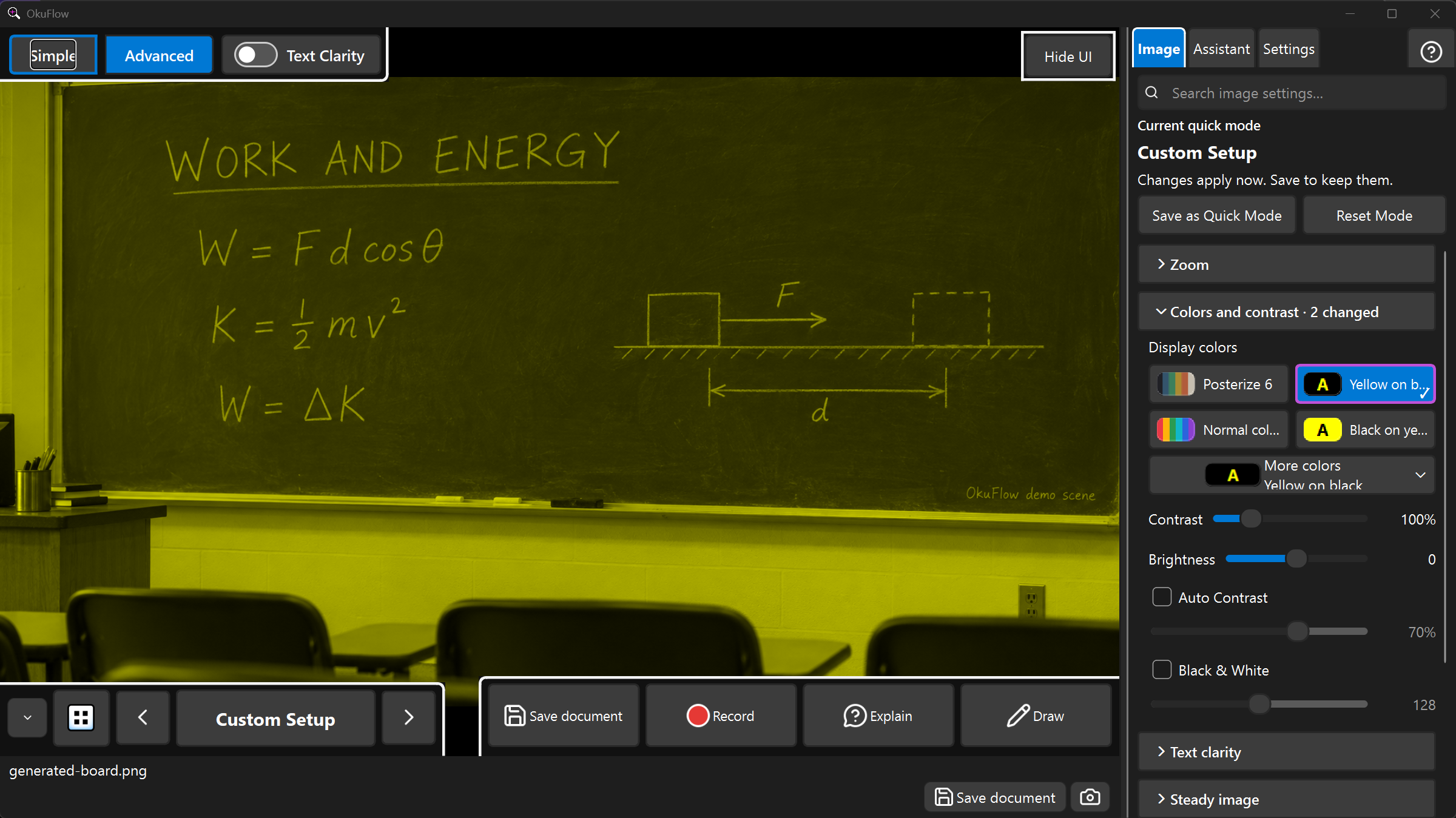
02Display colors

Read in the colors your eyes prefer.

OkuFlow display colors on the chalkboard scene
App screenshot Display colors

Turn the camera view into a high-contrast color pair, then fine-tune contrast and brightness until the page feels comfortable.

A few of the built-in pairs

  • Yellow on black
  • White on black
  • Black on yellow
  • Black on cyan
  • White on blue
  • Yellow on blue

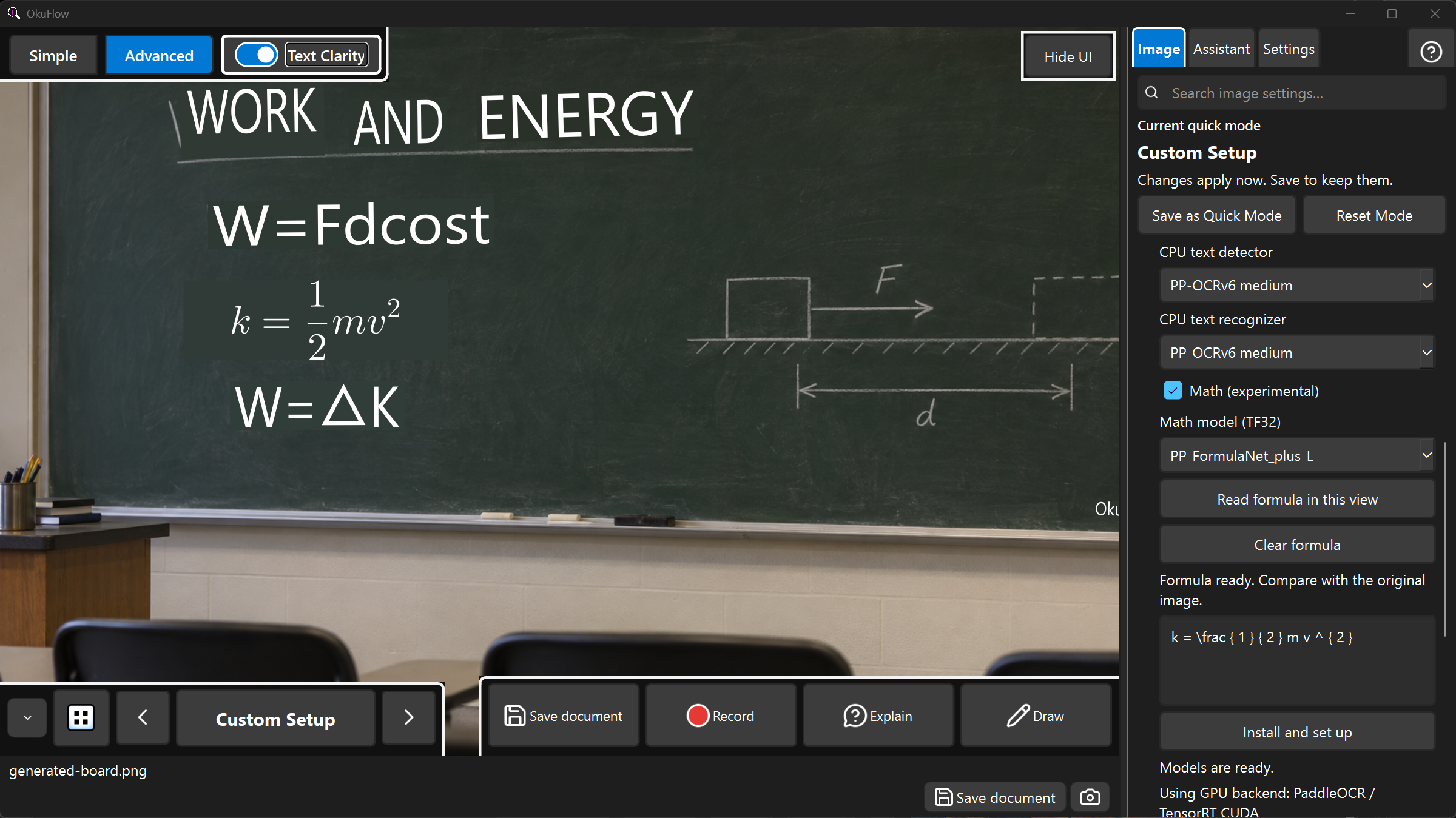
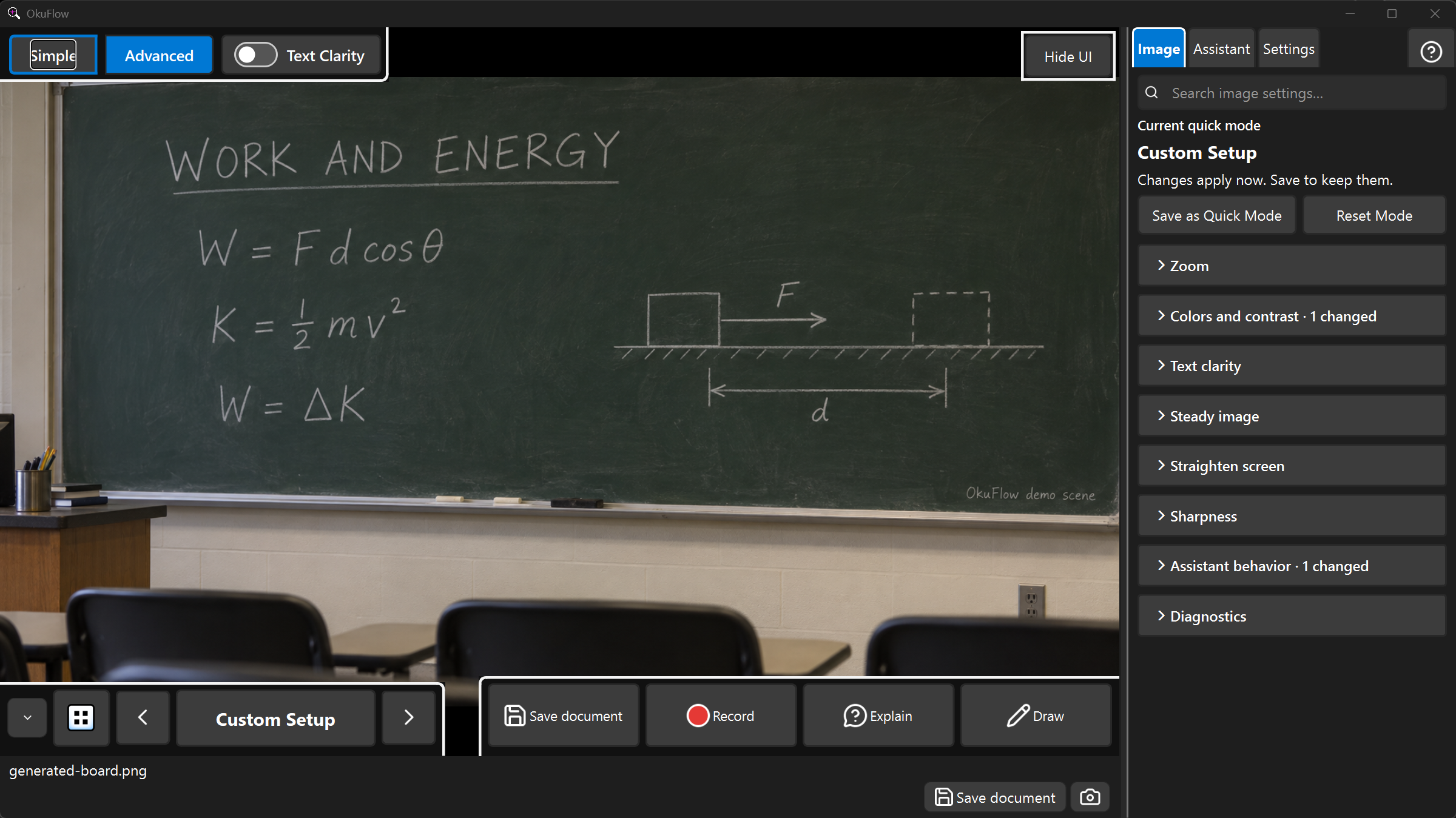
03Simple and Advanced

Start simple. Go deeper when you need to.

OkuFlow Advanced view with the chalkboard scene and the settings panel
App screenshot Advanced view

Simple gives the whole window to the camera, with quick modes such as Read a Page, Projector Screen and Whiteboard. Advanced keeps the live view beside every setting.

  • Zoom and pan
  • Steadier image for a camera fixed in place
  • Straighten a screen seen at an angle
  • Interface in 25 machine-translated languages

Capture

Keep the whole lecture, not just the moment.

Photos and recordings are saved in pairs: the original camera image and OkuFlow's processed view. Readings, explanations and captures gather in HTML lecture notes.

  • Draw on the view to mark what matters. In recordings, ink goes into the processed copy and the original stays clean.
  • Recordings can include microphone audio. You can record video with no microphone.
  • Privacy-respecting local transcription Transcribe recordings from your notes. Speech recognition runs in Chrome on your own computer; the audio is never uploaded.
Documents\OkuFlow\The default location. You can choose another folder.
  • Original and processed photo pairs

    Photos\YYYY-MM-DD\

    IMG_…_original.jpgIMG_…_processed.jpg

  • Original and processed MP4 pairs

    Recordings\YYYY-MM-DD\

    VID_…_original.mp4VID_…_processed.mp4

  • HTML lecture notes

    Notes\

    NOTES_….html

Setup

Three things on your desk.

OkuFlow runs on hardware you choose. Check these before you download.

  1. A Windows 10 or 11 PC

    OkuFlow runs on Windows desktop and laptop PCs.

  2. A compatible camera

    A USB/document camera with Windows Media Foundation support, or an Android phone using OkuFlow Camera over USB. The companion is in Google Play closed testing.

  3. A compatible NVIDIA GPU

    Needed for Text Clarity, a steadier image, straightening a screen, and colors.

Invited testers: install OkuFlow Camera from the Google Play closed test, enable USB debugging and authorize your computer on the phone. Connect by USB, keep the phone app open, then select OkuFlow Camera in Advanced → Settings → Camera.

Without a compatible NVIDIA GPU, OkuFlow shows only unprocessed camera video, with a clear notice on screen.

OkuFlow v0.4.2 · Preview, not digitally signed Windows SmartScreen may warn about an unrecognized app. Release notes and known issues

Up to 16× desktop zoom in Fill mode, with responsive pan and zoom over held camera frames.

The MSI installs OkuFlow. For the portable ZIP, extract the complete archive and run oku_flow.exe. Keep the files in that folder together.

Optional extras, such as the Codex CLI for Read and Explain, install from Setup & Downloads inside the app.

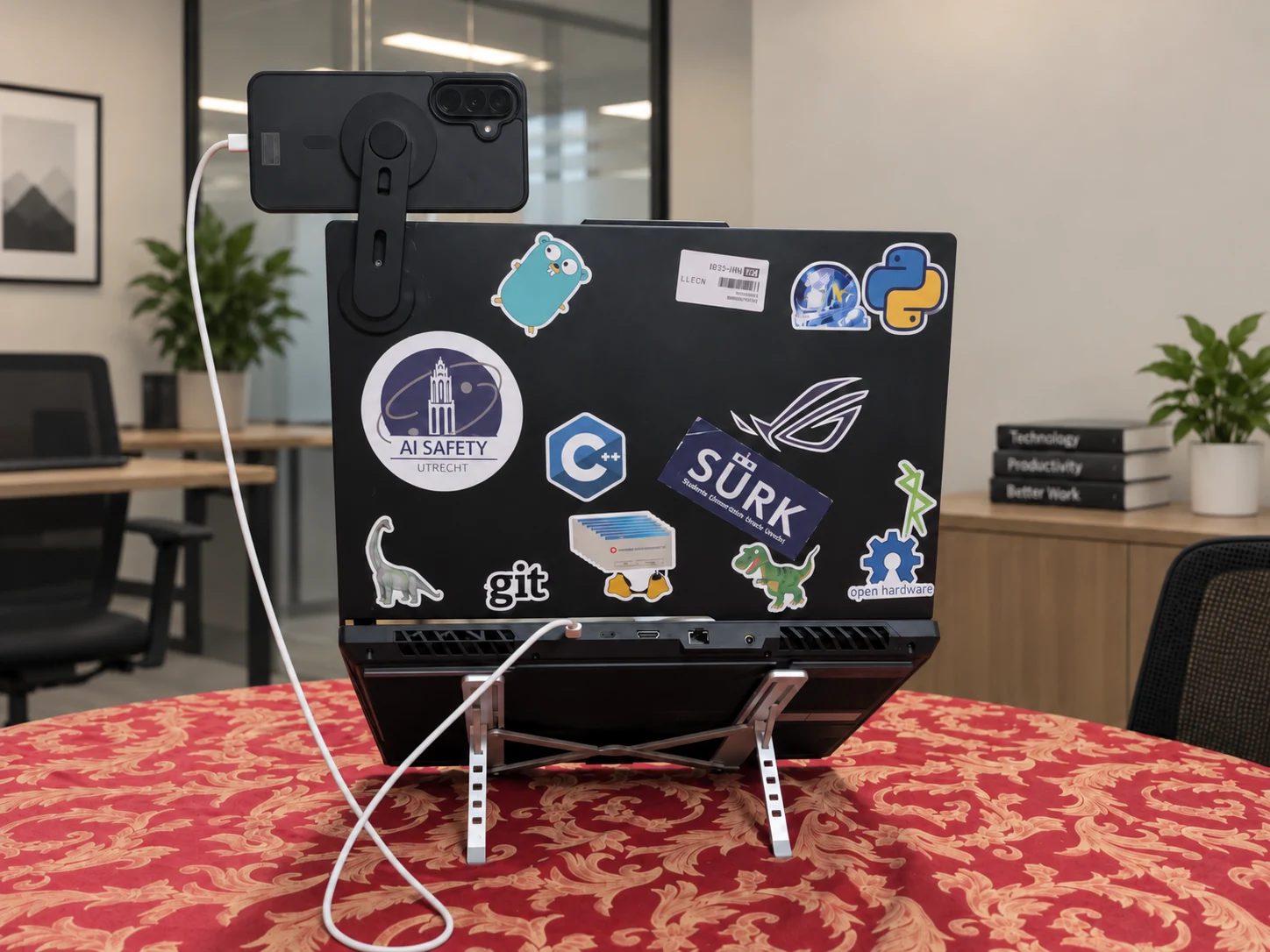
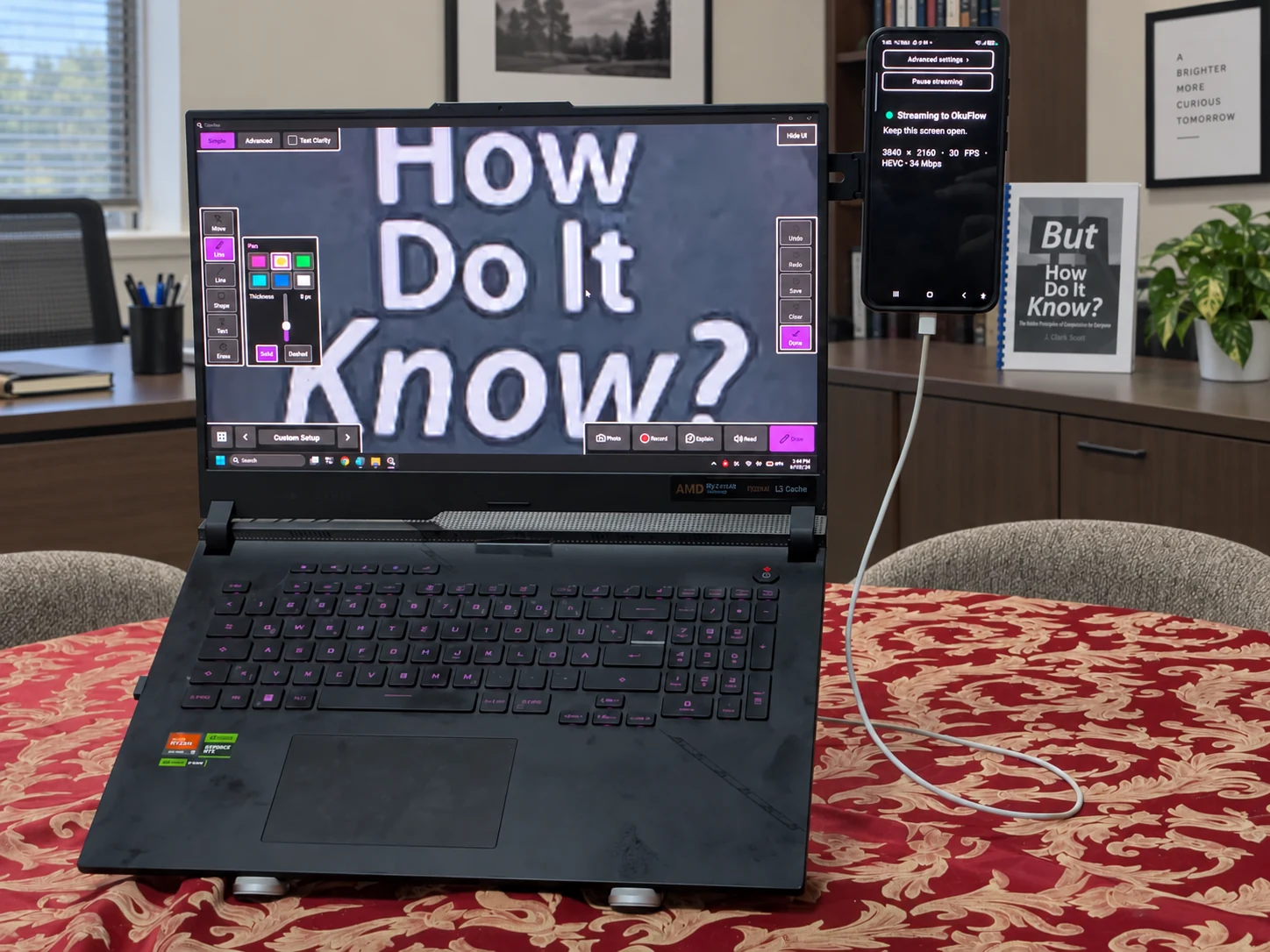
A compact phone-camera setup

For the setup shown here, add a phone arm beside your laptop. We strongly recommend a folding laptop stand as well.

  • Needed for this setup

    Laptop phone arm

    Holds your phone beside the screen so you can point its camera at a page or board while using OkuFlow.

    About US$10

Plan for about US$10 per accessory online. Prices, shipping and availability vary.

AI-powered accessibility

Ask when you want. Choose where the image goes.

The magnifier works without AI. Read transcribes the text in view and Explain describes the scene, each only when you ask, through the vision provider you select.

  1. You press Read or Explain

    The current camera view becomes the requested image.

  2. It goes to the provider you selected

    Online

    Codex / ChatGPT

    Requests can send text and attached camera images online through your signed-in Codex CLI. Provider access and charges are separate.

    Local

    OpenAI-compatible server

    A configured local OpenAI-compatible server is an alternative. Whether it uses the internet depends on how you set it up.

    In development We’re working on Anthropic CLI support and integrations with other providers for future releases.

  3. Read Aloud, on request

    The answer appears in large text. Choose Read Aloud to hear it in a Windows voice installed on your PC.

What's next

Where OkuFlow is going.

OkuFlow is GPU-accelerated today with NVIDIA CUDA. We're working towards more assistant choices and support for more graphics cards.

  • In development

    Claude as your assistant

    We're working on Anthropic CLI support for Read, Explain and Assistant, alongside Codex / ChatGPT and configured local models.

  • Planned

    AMD and Intel graphics

    We're planning GPU acceleration for AMD and Intel graphics so more people can use every image enhancement.

  • In testing

    Your phone as the camera

    OkuFlow Camera for Android sends your phone’s camera to OkuFlow over USB. The companion is in Google Play closed testing for invited testers; phone and desktop compatibility testing continues.

FAQ

Straight answers.

Something missing? Ask on GitHub

What does “agentic accessibility” mean?

OkuFlow does more than enlarge. When you ask, its assistant reads the text in view, explains the scene, answers follow-up questions and saves the answer in your lecture notes. It acts only when you press Read, Explain or ask a question.

Is OkuFlow a screen magnifier?

No. It magnifies a live camera image, such as a page on your desk, a whiteboard or a projected slide, rather than what is on your computer screen.

What do I need to run it?

Windows 10 or 11, a compatible USB/document camera or an Android phone using OkuFlow Camera over USB (in closed testing), and a compatible NVIDIA GPU for CUDA enhancement.

What happens without an NVIDIA GPU?

OkuFlow still shows your camera, but only as unprocessed video with a notice on screen. The enhancements need a compatible NVIDIA CUDA GPU.

Which cameras can I use?

USB and document cameras with Windows Media Foundation support, or an Android phone using OkuFlow Camera over USB. The companion is in Google Play closed testing for invited testers. Enable USB debugging, authorize your computer on the phone, keep the app open and select it in Advanced → Settings → Camera.

Do I have to use AI?

No. Read, Explain and Read Aloud are optional. Magnification, enhancement, photos, recordings and notes work without them.

Where does my image go when I press Read or Explain?

Read, Explain and Assistant requests go to your selected provider and can include text and attached camera images. Codex / ChatGPT uses an online service. A local OpenAI-compatible server is an alternative; whether it uses the internet depends on how you set it up.

Which languages does the app support?

The interface is available in 25 languages and switches without a restart. The translations are machine-assisted, so some wording may be imperfect. Read Aloud uses the Windows voices installed on your PC.

Is it really free?

Yes. OkuFlow is free and open source under GPL-3.0-only. A commercial license is also available. Hardware and optional AI provider access are separate. Commercial options

How do you make money?

We don’t make money from OkuFlow yet. If you’d like to support the project, please get in touch.

Your camera. Your PC. Your assistant.

Free and open source under GPL-3.0, with commercial licensing for organizations. Built by the legally blind, for the legally blind.

Download for Windows View source on GitHub

Windows 10/11 · compatible NVIDIA GPU for enhancement